Ark: Never Lose Your VS Code Setup Again
March 27, 2026
•
5 min read
I wiped my machine.
Not intentionally, just one of those “cleanup” moments that went too far.
When I opened VS Code again, everything was gone.
Extensions. Settings. Keybindings. All of it.
The setup I had spent months, years refining… gone in seconds.
This happened to me twice, and I felt so sick and tired of it.
And the worst part?
There was no way to get it back.
The Problem We Ignore
If you’re a developer, your environment isn’t just “setup.”
It’s muscle memory.
It’s speed.
It’s flow.
Losing it isn’t just inconvenient, it kills your momentum.
So I did what we all do:
- Reinstall extensions
- Reconfigure settings
- Fix broken workflows
Over. And over. Again.
Introducing Ark
I didn’t want “sync.”
I didn’t want “maybe it’s backed up somewhere.”
I wanted one thing:
A guaranteed way to get everything back, instantly.
So I built Ark.
Your entire environment. Restored exactly as it was. No guesswork.
Screenshot: The Sidebar Experience
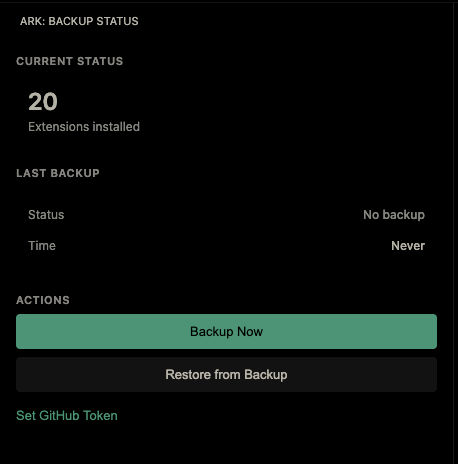
The sidebar shows you everything at a glance:
- Current extension count
- Last backup timestamp
- One-click backup/restore buttons
- Token management
The Smart Restore: See What's Changing
Ark doesn’t blindly overwrite your setup.
Before restoring, it shows you exactly what will change.
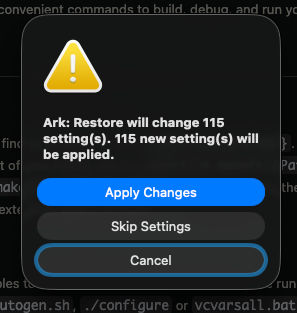
You see:
- Which settings will be added
- Which settings will be modified
- Which settings will be removed
Then you confirm, and it applies.
No surprises. No accidental data loss.
Real Scenario: How It Saved Me
When I set up a new machine.
Normally, that means losing half a day rebuilding my environment.
Without Ark
- Install VS Code (5 min)
- Reinstall 50+ extensions (30–45 min)
- Manually restore all settings (1–2 hours)
- Fix things that broke (30+ min)
Total: 2–3 hours minimum
With Ark
- Install VS Code (5 min)
- Install Ark extension (30 sec)
- Click restore (2 min)
- Done
Total: ~8 minutes
I was productive immediately.
Why This Approach?
Why GitHub Gist?
- Free hosting
- Private by default
- Version history built-in
- You control the token
- No third-party servers
Why Auto-Backup?
- You don’t have to remember
- Frequent saves mean minimal loss
- Runs silently
Why Open Source?
- You can audit the code
- You can self-host
- Community can improve it
How It Works (Without the Magic)
Ark reads your VS Code environment:
- Installed extensions
- Settings
- Keybindings
It removes sensitive data (tokens, secrets), then stores everything as JSON in a GitHub Gist.
When you restore:
- Extensions are reinstalled
- Settings are reapplied
That’s it. No magic. Just reliable recovery.
Getting Started
Ark is free and available on the VS Code Marketplace.
Install it
- Open Extensions in VS Code
- Search for Ark
- Click Install
First Backup
- Generate a GitHub Personal Access Token
- Click “Set GitHub Token” in Ark
- Paste your token
- Click “Backup Now”
That’s it. Future backups happen automatically.
Why I Built This
We spend hours perfecting our dev environments.
Then we protect none of it.
One mistake. One reset. One failure.
And it’s gone.
That never made sense to me.
I built Ark because I was tired of rebuilding my setup from scratch.
I wanted to click a button and be instantly productive on any machine.
Now every developer can.
Links
- VS Code Marketplace: Ark on the marketplace (opens in new tab)
- GitHub: Source code (opens in new tab)
What’s Next?
Ark is live and free.
Use it. Share it. Break it.
If you have ideas, open an issue on GitHub.
And if you ever find yourself on a new machine, needing your perfect setup back instantly—
Lose your machine. Not your setup.
Have any idea you would want to share, hell yeah feel free, I'd love to hear from you. Reach out (opens in new tab) or book a call (opens in new tab), let's talk.